The Recycle Bin is a flexible place, willing to enlarge itself, as necessary, to accept your recently deleted files. By default, the space allocated by Windows for the Recycle Bin is up to 10 percent of your hard-drive space. If you think about it, that's a ton of space.
The Recycle Bin is constructed so that it keeps whatever ends up there until you manually delete it (or until the allocated disk space fills up). If the disk space fills up, then the oldest files in the Recycle Bin are deleted to make way for the newer items. If you have 8 GB (or more) set aside for the Recycle Bin, the sheer size of the allocated area means you're wasting a lot of disk space.
The solution is to change the amount of disk space allocated to the Recycle Bin:
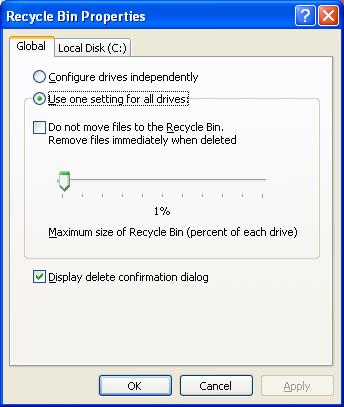
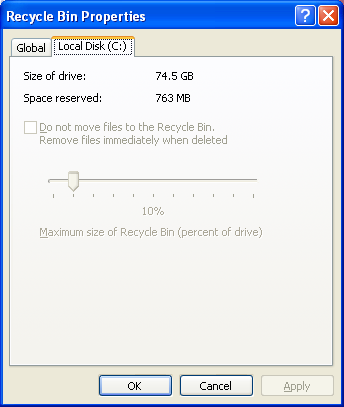
Right-click the Recycle Bin icon and choose Properties. Windows displays the Properties dialog box for the Recycle Bin. The dialog box contains a tab named Global and one tab for each system drive.
On the Global tab, select the Use One Setting for All Drives option. You can configure your drives independently, but most people have no need to.
Use the slider to specify a smaller percentage of your hard drive for Recycle Bin space. If you have a large drive or several large drives, consider setting the slider as low as one percent. (Remember that one percent of 80GB is 800MB. That's still a large block of disk space for the Recycle Bin.)
Click OK.
How does resizing the Recycle Bin help unclutter your system? Simple: When Windows doesn't need to track as many deleted files, the operating system is more responsive.
!wave
Ok never mind - If I tick Indepently then I can configure it!! hehe - Blonde moment
Sweet - i didnt know that - cool thanks Christo
Mmmmmm Yo Christo , tell me how on earth do I remove the Recylce Bin Icon from my Desktop ???????
I don't think its possible!!
Tis possible! Use a windows UI program.
Maybe Christo knows the regedit way??

![Christo [PCD]](/thumb.php?src=%7Be_AVATAR%7Dupload%2Fap_1_newavav4.jpg&aw=100&ah=100)

![RaZeaL [PCD]](/thumb.php?src=%7Be_AVATAR%7Dupload%2Frazeal_ava_1.1142492125.png&aw=100&ah=100)